HIRO User Guides

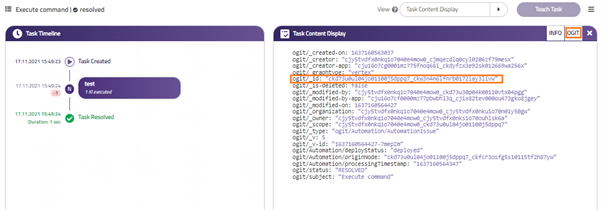
Table of Contents
There are times you need to submit a support ticket. In this section, we will provide some best practices to assist you in submitting the support ticket effectively.
1. Ticket template for technical issues
When you find bugs and need to contact support team, please send us an email to support@hiro.almato.ai providing as much of the following information as possible:
[Subject]: Customer Name / Issue Description
[Body]:
-
Haas Instance ID: Provide haas ID
-
Scenario (Please use one request per issue): Describe what you were trying to do in a nutshell
-
Steps to replicate: List the steps to replicate the scenario as described above in a chronological order, including URI’s, tabs, or field labels etc.
-
Current result: Describe your observation and attach log files and/or screen shots to illustrate
-
Expected result: Describe what should have happened instead of what has been observed
-
Environment: Is the issue happening on the Production or Development environment?
-
Priority: High - Medium - Low
-
Timestamp: Please provide timestamp for the event that worked and the one that didn’t work
-
Task Id: Please provide Task id when applicable
Please provide following details if you are facing any of these issues:
"HIRO is not processing incoming tickets"
- Can you see the task on the "Task Inspector"?
Which is the status of this Task in the "Task Inspector"
-How is the Task created (JIRA, SNOW, Postman)?
Postman: Please attach body request data details
JIRA/SNOW: Please attach Ticket id from your ticket System
"The AH is giving errors/no working"
- Which AH is not working?
Is the AH running "on premise"or cloud ?
Please provide Task id and correspoding Engine log
Has the AH worked before? Please attach Task id where the AH was working
"I can not access to my HIRO instance"
- Please provide screenshot of the error message you get
- Please provide username you are using
"HIRO Apps are not working/ not accessible"
- Which App is not working?
- Which username are you logged in?
- Please provide screenshot of the error/issue
- Which browser are you using?
"My task resports "terminated"status"
- Please provide Task id
- Has this Task worked before?
"I can’t edit my KI"
- Please provide KI id
- Can you access the K.I.M App?
- Which user are you logged in?
- Is the KI "undeployed"?
2. How to get information for the ticket support?
Where can I find the Task Id? Go to the Task Inspector App, select the Task. On the task Content Display, select “OGIT” and look for the value of the parameter “ogit/_id”.
Where can I find the KI Id? Go to the Task Inspector App, select the Task. Now select the specific KI you want to know the Id and hover the mouse over the square box until you see the label “Open in Knowledge Item Manager”.
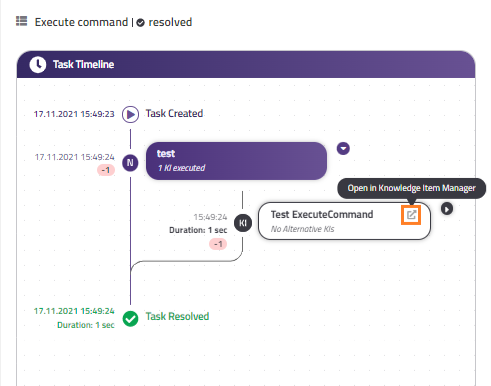
In Knowledge Item Manager App, you can find the KI Id on the search box as well as on the ribbon of the KI.

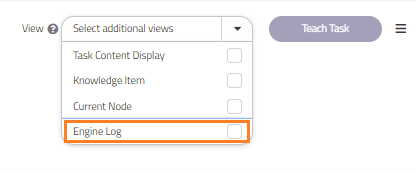
Where can I find the Engine Log? Go to the Task Inspector App, select the Task. On “View” menu select “Engine Log”. Now you can go to the KI you want to see the Engine Log from.